Minecraft Pixel Art Generator
Convert a photo or drawing into a Minecraft-style block grid. Review suggested blocks and their counts, copy the block array, and download a PNG or printable PDF. Block colors are approximate map-color matches.
LIVE PREVIEW
Your pattern
Choose an image to create a patternYour image is processed locally in this browser.
COLOR KEY
Block suggestions and counts
Choose a Minecraft build to try
Load a photo reference and inspect its Minecraft-style block colors and suggested build counts.
Sandstone arch in a canyon
Basalt waterfall
Giant tortoise in the grass
Amethyst geode
Pig in a green pasture
Campfire in a forest clearing
Oak tree in early autumn
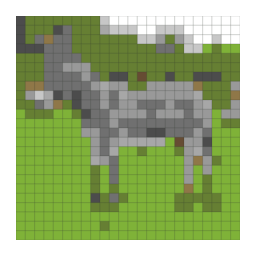
Gray donkey in a paddock
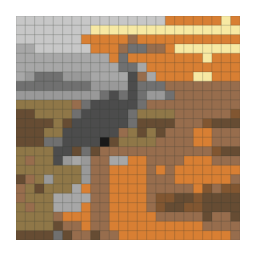
Blue heron at the marsh
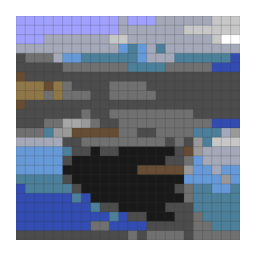
Wooden fishing boat
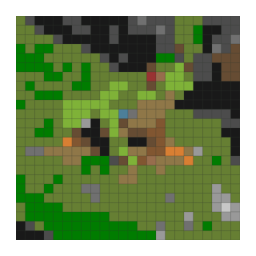
Green tree frog on a leaf
These starter designs are illustrative, not customer work. Choose one to load it in the editor, then adjust the grid and colors for your project.
Features
Explore what this workspace can do, how each control affects the result, and which export fits your next step.
Convert a reference image into a block grid
Choose a PNG, JPG, or WebP image and set how many cells span the design. Each cell is assigned a suggested Minecraft block based on an approximate map-color reference.
Review a named block key and cell counts
The key groups cells by suggested block name and shows how many positions use each one. Counts describe the generated grid, not a verified inventory or a survival-mode shopping list.
Copy the row-by-row block array
Copy the generated text array when you want a compact record of the layout. It represents the rows with namespaced block IDs; it does not create a world, schematic, or structure file.
Adjust detail and color complexity
Change grid width and the maximum number of colors to simplify the design or preserve more parts of the source. A smaller grid is often easier to build, while a larger one gives small features more positions.
Edit cells and export a reference
Use the editable grid to correct a block choice or shape. Download a PNG for a quick visual reference or a PDF with a grid and key for following the layout while building.
Process the selected image in your browser
The source image is processed locally in the page. The tool does not upload it to a converter service or save an account project for later sessions.
How to make Minecraft pixel art from an image
Treat the result as a block-by-block planning reference: simplify the source, choose a practical grid, check the suggested palette, then verify materials in your game.
Choose a block-friendly image
Load a PNG, JPG, or WebP image or select one of the examples. A bold subject with a simple background is easier to translate into blocks than a detailed scene with many similar colors.
Choose the grid dimensions and color count
Set the width based on how much detail and build effort you want. Reduce the color limit to keep the material list shorter, then check that the most important shapes still stand out.
Inspect and correct the block suggestions
Read the approximate map-color matches as material suggestions, not exact texture matches. Edit a few cells if needed and check how the named counts change as the design is refined.
Save a reference and verify materials
Download a PNG or printable PDF and keep the block key and row array nearby. Preview the actual blocks in your Minecraft edition, resource pack, and lighting before building a large design.
What the Minecraft pixel art generator creates
The generator turns an image into a two-dimensional grid where each cell is paired with a suggested Minecraft block. It also groups the cells into a named key, provides counts, and lets you copy the layout as rows of block IDs. These outputs make a visual reference for planning a flat build.
The result is not a 3D model or a finished in-game construction file. A PNG and PDF show the grid as a chart; the copied array is text data. You still choose the build location, orientation, materials, and method for placing the blocks in your world.
Choose a source image that maps to clear shapes
High contrast, a dominant subject, and a plain background usually produce a grid that is easier to build. A close crop puts more cells on the subject, while a distant scene may spend many cells representing sky, ground, or background. Simple illustrations can be easier to translate than photographs with subtle textures.
The source aspect ratio is preserved in the grid. A wide landscape becomes a wide design, and a portrait stays tall. Before choosing a width, decide how much wall or map area is available and check the resulting height so the layout fits the intended surface.
Treat map-color matches as suggestions
The palette uses approximate Minecraft map colors paired with representative blocks. A map color is a flat display reference, not a promise that the block texture will match the preview in the game. Texture, lighting, biome, shaders, resource packs, and game edition can all change how a build looks.
Use the suggested names to narrow down candidate materials, then test them in the actual world before gathering a large quantity. If a particular block is unavailable in your edition or build mode, choose a nearby substitute and revise the affected cells in the chart.
Balance build size with the number of block types
Grid width sets the number of cells across the image. A smaller grid means a smaller build and broader shapes; a larger grid can preserve details but increases the number of positions you must place. The maximum color count affects how many distinct block suggestions appear in the key.
A short material list can make a design easier to gather and organize, but too few colors may merge important boundaries. Preview the reduced version at normal viewing distance. If the subject is no longer recognizable, increase the grid or allow a few more colors rather than adding detail everywhere.
Read the block key and count the grid positions
Each row in the key names a suggested block and shows the number of cells assigned to it. Those counts are grid positions. They do not include extra blocks for mistakes, scaffolding, borders, structural support, or replacements if a material is unavailable.
Use the key as a planning estimate and add your own allowance for the build. Check whether the design contains empty cells and review its outline before copying the array. If you edit the grid, recheck the key and copy the updated data so the text matches the current preview.
Use the copied array as row data
The block array records the suggested layout row by row with namespaced block identifiers. It gives you a compact way to inspect or reuse the sequence, and empty positions are represented with minecraft:air. Keep the orientation consistent when you interpret the first row and first column.
Copying this text does not place blocks in a world. The tool does not generate a schematic, structure file, command, or automatic build. If you paste the array into another workflow, confirm that workflow’s expected order and format before relying on it.
Export a chart that is easy to follow while building
A PNG works well as a quick image reference. A PDF provides a printable grid and a color key, which can help when you need to mark completed rows or check counts away from the editor. For a large design, make sure the printed pages preserve row and column alignment.
Keep the actual block key visible as you build and compare the preview with blocks placed in your world. The chart is a guide to color regions, not a simulation of depth or texture. Small shading differences that look useful on screen may disappear from a distance once the build is complete.
Minecraft pixel art generator questions
Does this create a Minecraft world or schematic?
No. It creates a two-dimensional block grid, a suggested block key with cell counts, copyable row data, and PNG or PDF references. It does not export a world, schematic, structure file, command, or automatic build.
Are the suggested block colors exact in-game textures?
No. The matches use approximate map colors paired with representative blocks. Texture, lighting, shaders, resource packs, and game edition can change the appearance, so test candidate blocks in your world before building.
What does the block count tell me?
It counts grid cells assigned to each suggested block. It does not include extra materials for construction, support, errors, or unavailable blocks, so use it as a planning estimate and check your actual build requirements.
How do I make the design easier to build?
Use a smaller grid width and a lower color limit to reduce positions and block types. Check that the main subject remains recognizable, then add detail only where it improves the design.
Can I copy the layout into another program?
Yes. The block-array field provides row-by-row text with namespaced block IDs. The receiving program may expect a different order or format, so verify its requirements before importing or transforming the text.
What does minecraft:air mean in the array?
It marks an empty grid position in the copied row data. It does not represent a suggested solid block, and the text array itself does not place or remove anything in a Minecraft world.
Can I print the block grid?
Yes. Download a PDF with a grid and color key, or use a PNG for a quick reference. Check that the printed grid is readable and that rows stay aligned if a large design spans multiple pages.
Can I edit the suggested block choices?
Yes. The grid is editable, so you can correct cells and then review the updated key and counts. Use edits for substitutions that fit your edition or materials, and copy the array again after changing the design.
Which images can I use?
The tool accepts PNG, JPG, and WebP images. A simple, high-contrast subject generally maps more clearly than a busy scene with many subtle colors.
Is my source image uploaded?
No. The image is processed in your browser and is not uploaded to the converter. The current page does not store a project for later, so download the chart or copy its array before leaving.