Image to Pixel Art Converter
Use this pixel art converter to turn a photo, drawing, or illustration into editable pixel art. Adjust the grid, palette, and color blending, then refine cells and export a PNG or printable PDF.
Your pixel art starts here
Choose a photo or illustration. We’ll create an editable pixel version automatically.
Your image stays in this browser and is never uploaded.Or start with a sample
Choose a tool, then click or drag across the grid. Undo and redo shortcuts: Ctrl/Cmd+Z and Ctrl/Cmd+Shift+Z.
Export settings
Choose a pixel-art project to try
Browse distinct photos of pets, objects, and scenes converted into editable pixel art. Choose one to load its source photo in the editor.
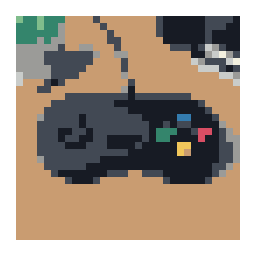
Retro game controller
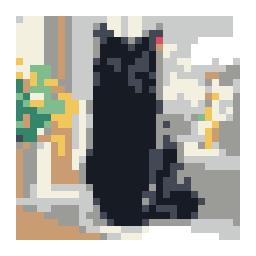
Black cat in a sunny window
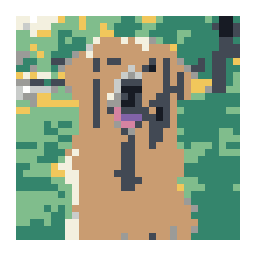
Golden retriever portrait
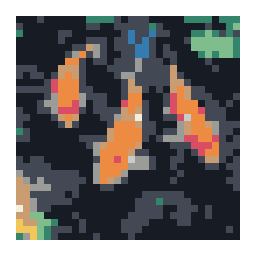
Koi in a garden pond
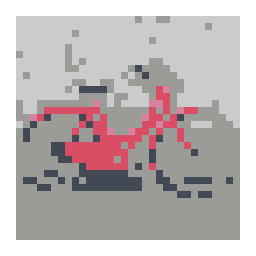
Red vintage bicycle
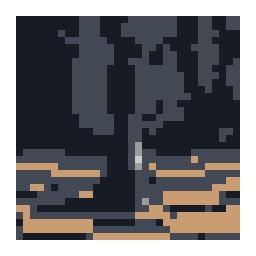
Carved wooden chess king
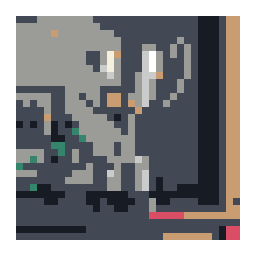
Silver sports trophy
Hobby model rocket
Green iguana on a branch
Cobalt-blue ceramic vase
Fireworks over the waterfront
These starter designs are illustrative, not customer work. Choose one to load it in the editor, then adjust the grid and colors for your project.
Features
Explore what this workspace can do, how each control affects the result, and which export fits your next step.
Convert photos, drawings, and illustrations
Load a PNG, JPG, or WebP source to make an editable pixel-art grid. A clear silhouette is useful for photos and drawings alike, and the height of the result follows the source proportions.
Control the canvas detail
Choose how many cells cross the source image. Lower grid widths favor simplified shapes, while higher widths leave room for finer edges and small features.
Limit colors and compare palettes
Set a color limit and choose a palette for the pixel-art treatment. Fewer colors simplify the image; more colors can retain additional shading when the subject needs it.
Compare dithering and flat fills
Use dithering to distribute nearby colors as texture in a gradient, or turn it off for cleaner regions. Different algorithms create different patterns, so compare the actual preview before choosing.
Edit the generated cells
Paint, erase, fill, or pick colors from the grid, then undo or redo a change. This gives you a way to repair an edge or simplify a small area while keeping the rest of the conversion.
Export a finished image or chart
Save a clean PNG, a pattern PNG with optional grid lines and labels, or a printable PDF with a grid and color key. The source image is processed in your browser.
How to convert an image into editable pixel art
Choose the source and grid first, then refine color and individual cells. A short comparison pass usually makes it easier to decide which settings preserve the design.
Start with a clear image
Choose a PNG, JPG, or WebP photo, drawing, or illustration. A source with one subject and clear boundaries gives the color reduction a better chance to preserve the shape.
Choose the grid and color limit
Set the grid width, then compare a lower and higher value. Set a color limit that keeps the palette manageable while preserving the shading needed to identify the subject.
Compare dithering and make edits
Preview the available dithering modes and the flat-color version. Keep the treatment that reads best at the intended size, then use cell tools to correct a few important boundaries.
Export the right version
Choose a clean PNG for artwork, a pattern PNG to keep grid markings in the image, or a PDF to print the chart and color key. Check transparency and labels before saving the final file.
What changes when an image becomes pixel art
The converter samples the source into rows and columns, then maps each cell to a color in the selected palette. The output is an editable pixel grid rather than a flattened filter effect, so you can adjust the resolution, color count, and selected cells before downloading.
This process simplifies detail. The grid and palette decide which edges, shadows, and small marks survive. A good conversion is not necessarily the one that copies every shade; it is the one that keeps the subject readable in the visual style and dimensions you want.
Prepare an image with a readable silhouette
Images with one dominant subject, clear boundaries, and a reasonably simple background are easier to interpret after reduction. A tightly framed drawing or object gives the grid more cells for the subject. If the source contains small lettering or fine texture, expect to increase resolution or simplify those details.
Photographs and illustrations behave differently. A photograph may include soft gradients and surface texture that need many colors or dithering; a flat illustration may already have well-separated shapes that work with fewer colors. Load a sample or a copy of your image and compare before committing to detailed edits.
Choose grid resolution for the final viewing size
Grid width is the number of columns. A lower width creates larger cells and favors a bold, simplified look; a higher width provides more positions for curves, narrow shapes, and facial features. The resulting height follows the source ratio, so the total chart shape may be wide or tall.
Think about where the pixel art will be viewed. A small avatar or icon may need bold shapes that survive at thumbnail size, while a larger print can make use of more cells. Zoom out in the preview as you compare settings, because detail that is visible only when enlarged may not help in the final asset.
Set the palette size before repairing details
A color limit controls how many colors can appear in the converted grid. A smaller palette reduces visual complexity and can make a result easier to recreate. A larger palette may preserve more tones in shaded images, but it can also introduce near-duplicate colors that are difficult to distinguish in a small chart.
Start with the simplest palette that keeps the subject recognizable. If two important regions merge, increase the color limit or choose a palette that separates them. If the result feels noisy, reduce colors and then use cell edits to restore the few accents that define the subject.
Use dithering when its pattern helps
Dithering places available colors in a spatial pattern to simulate tones between them. It can make a smooth gradient appear less banded, especially when the palette is limited. The pattern is part of the image, though, so it may create texture where you would prefer a single solid region.
The available algorithms produce different distributions of neighboring colors. Compare each option at the same grid width and color limit instead of assuming one is universally best. Turn dithering off for a clean, graphic result or when you need every cell to map clearly to a chosen color.
Refine the grid without losing consistency
Use Paint for a specific cell, Fill for a connected region, and Pick when you want to reuse an existing palette color. Erase a cell when the design needs an empty position. Undo and redo let you test a change; review the whole image after each group of edits to make sure the outline still reads.
The editor is most useful for targeted corrections after automatic conversion. If you need to redraw large portions, return to the source or try another grid and palette combination. Save a PNG or PDF before leaving because the current page does not retain a project for later.
Understand clean art, pattern PNG, and PDF exports
The clean PNG is intended to show the pixel-art result without a chart overlay. The pattern PNG can show grid lines and optional labels to help locate cells. A PDF adds a printable grid and color key; larger designs can be arranged across multiple sheets.
Choose transparency when you plan to layer the artwork over another background and inspect the edge around the subject. Choose labels when cell coordinates matter, but make sure the resulting scale remains readable. The export is a reference file, not a project format that restores editor controls.
Image to pixel art questions
Can I convert a drawing as well as a photo?
Yes. The editor accepts PNG, JPG, and WebP images, including drawings and illustrations. Clear outlines and distinct color regions help the grid preserve the important shapes.
How do I choose a pixel-art grid size?
Start with a middle setting and compare it with a coarser and finer grid. Use fewer cells for a bold simplified shape and more cells when small features must remain visible. The grid height follows the source proportions.
How many colors should I use?
Use the lowest color limit that still separates the important parts of the image. A small icon may need only a few tones, while a shaded subject may require more. Compare the preview before editing individual cells.
What does dithering do to pixel art?
Dithering arranges nearby palette colors in a pattern to suggest additional shades. It can smooth gradients, but the extra texture may make small cells harder to read. Compare the available modes with dithering off.
Can I edit pixels after converting the image?
Yes. Use Paint, Erase, Fill, or Pick on the generated grid. Undo and redo are available during the current session, so you can correct edges and compare changes.
Can I download pixel art without grid lines?
Yes. Choose the clean PNG export for the pixel artwork without chart markings. The pattern PNG and PDF are useful when you want visible grid lines, labels, or a color key.
Can the output have a transparent background?
Yes. The editor can remove a suitable background and export a transparent PNG. Simple backgrounds are easier to separate, so inspect edges around hair, thin lines, or other detailed shapes.
Does the converter upload my picture?
No. Conversion takes place in your browser and the current tool does not send the source image to a server. It also does not save a project for another session, so download your work before leaving.
Can I make pixel art from a logo or icon?
Yes. Use a high-contrast source with clean edges and little surrounding space. Keep the color limit modest, then increase the grid if thin lettering or small marks need more room.
Which file types can I upload?
PNG, JPG, and WebP are supported. If your image does not load, try exporting a copy to one of those formats and resizing an unusually large file.