Cross Stitch Pattern Maker
Turn an image into a cross stitch chart with a symbol grid, approximate DMC floss color key, and stitch counts. Choose an Aida count to estimate the finished design size, then download a PNG or printable PDF.
LIVE PREVIEW
Your pattern
Choose an image to create a patternYour image is processed locally in this browser.
COLOR KEY
Floss references and stitch counts
Choose a cross-stitch pattern to try
Load a photo and inspect how its colors become floss references, chart symbols, and stitch counts.
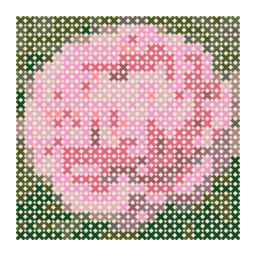
Pink peony in bloom
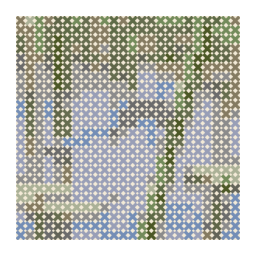
Blue dragonfly on a reed
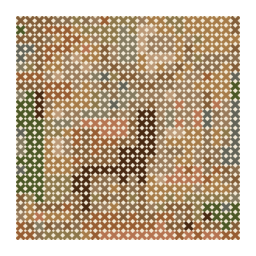
Red deer stag in autumn
Lavender bundle
Red maple leaf
Unfurling fern frond
Candle on a brass holder
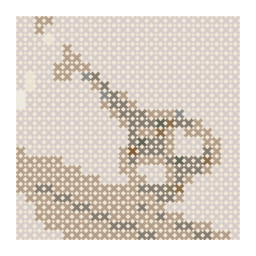
Embroidery scissors on linen
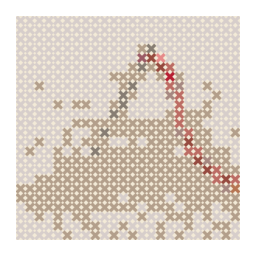
Needle and red thread
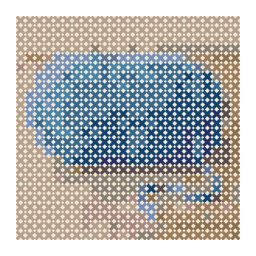
Blue wool yarn
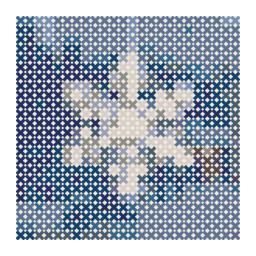
Snowflake at a winter window
These starter designs are illustrative, not customer work. Choose one to load it in the editor, then adjust the grid and colors for your project.
Features
Explore what this workspace can do, how each control affects the result, and which export fits your next step.
Turn a picture into stitch positions
Load a PNG, JPG, or WebP source and convert it into a grid where each cell represents one cross stitch. The height follows the image proportions, so the chart keeps the source shape.
Choose chart detail and color count
Set the number of stitches across and limit the number of colors. Fewer stitches and colors simplify a design; a wider chart can leave more room for small shapes and edges.
Follow a symbol and color key
Each chart symbol points to a color-key entry with a floss reference and stitch count. Use the symbols to distinguish adjacent colors when printing in grayscale or viewing a dense chart.
Estimate the stitched dimensions
Select an Aida stitches-per-inch count to estimate the design width and height. The measurement describes the stitched area only; add fabric margins separately for finishing.
Edit cells and review the chart
Paint, erase, fill, or pick colors to refine the grid. Check the symbol key and counts again after editing so they match the current pattern.
Download a PNG or printable PDF
Keep a PNG for a quick image reference or print a PDF with a labeled grid and color key. The DMC palette is a sampled reference, so compare floss with a physical card or skein.
How to make a cross stitch chart from a picture
Choose a source with readable shapes, decide how many stitches define its width, review the symbol key, and use the selected Aida count to estimate the stitched area.
Select a source that simplifies well
Load an image or choose an example. A clear subject and strong boundaries are easier to follow as stitches than a photo with a lot of fine texture or many similar shades.
Set stitches across and color limit
Choose the chart width based on the detail you need and the time you want to spend stitching. Set a practical color limit, then check whether the important outline and features remain visible.
Choose Aida count and inspect the key
Select the fabric count to estimate the stitched dimensions. Review each symbol, its approximate DMC reference, and its stitch total; compare the digital colors against physical floss before buying.
Export and plan the fabric margins
Download a labeled PNG or printable PDF, then add extra fabric around the estimated stitched area for framing and finishing. Print a test page if you need to confirm chart readability.
What the cross stitch chart represents
The chart converts an image into rows and columns of stitch positions. Each cell represents one cross stitch and is paired with a symbol from the color key. That makes the design countable and provides a way to follow the layout one cell at a time.
It is a generated chart, not a complete project plan. The tool can estimate stitched dimensions from the selected Aida count and show color references and stitch totals, but it does not calculate thread length, skein quantity, fabric allowance, or a finishing method.
Choose a source image that reads in stitches
A close crop with a recognizable outline is usually a better starting point than a wide image filled with small background details. Faces, pets, simple objects, and flat illustrations can work when their main features remain distinguishable after the image is reduced to cells.
Soft shadows and tiny highlights may become separate symbols or disappear. If a subject becomes hard to read, try a larger stitch count across, simplify the source image, or reduce the color limit and edit the most important features by hand.
Choose chart width with time and readability in mind
The number of stitches across controls the chart width. A narrow chart makes a smaller, simpler design with fewer positions to stitch; a wider chart gives more room to represent curves and small features, but it also increases the total stitch count.
Review the chart at the size you expect to print. Very small symbols can become difficult to distinguish when a page is scaled down. If the color key is dense, choose a chart size and PDF layout that leave enough room for the symbol, color reference, and count to remain legible.
Estimate the finished stitched area
Divide the chart width and height in stitches by the selected Aida count to estimate the stitched area in inches. For example, 56 stitches across on 14-count fabric is about 4 inches across before adding any extra material. Apply the same calculation to the height.
This is an estimate of the stitched design, not the full fabric cut size. Add margins for a hoop, frame, seams, or your preferred finishing method. Fabric count, tension, and finishing choices can affect the final measured piece, so measure the actual work as you stitch.
Read symbols and thread references carefully
A symbol identifies one color entry in the chart. The key connects that symbol with a digital color sample, an approximate DMC floss reference, and the number of chart cells assigned to it. Symbols help keep neighboring areas distinct even when thread colors look similar on a screen.
The palette is a spaced subset of a community DMC dataset, not the complete thread catalog. Digital RGB values are estimates and should not be treated as guaranteed physical matches. Compare the references with a thread card or actual skeins before choosing thread for a finished project.
Use color counts as stitch counts, not thread quantities
The count beside a color is the number of stitch positions assigned to that key entry. It does not estimate how much floss each stitch will use, how many strands you plan to stitch with, how much thread will be carried, or how many skeins you need.
Use the counts to understand palette complexity and locate larger color regions. Estimate thread separately using your preferred stitching method and a reliable thread-planning reference. Recheck the key after cell edits because changing a region changes the count.
Edit the grid before you print
Paint can correct a single cell, Fill can change a connected region, and Pick can reuse a color already in the grid. Erase a position if the chart needs an empty cell. These edits can make an outline cleaner or remove a stray speck that would otherwise add an unnecessary color change.
After editing, review the chart at both full size and normal print size. Check that neighboring symbols remain distinct and that the key reflects the design. If the source is too detailed, a different grid width is often easier than repairing many cells one by one.
Prepare a readable PDF and a realistic fabric plan
The printable PDF includes a symbol grid and color key. Before stitching, confirm that the symbols and grid lines are visible at the chosen print scale, and keep the key with the page it describes. A PNG can be convenient on screen, while the PDF is useful for marking progress on paper.
Use the estimated stitched width and height as the center of your fabric calculation, then add your own margins for finishing. The export does not include those margins or a cutting template. Save the chart before leaving the page because the editor does not keep a project library.
Cross stitch pattern maker questions
How large will the stitched design be?
Divide the stitch width and height by the selected Aida stitches-per-inch count. A 56 by 70 stitch chart on 14-count fabric is about 4 by 5 inches of stitching, before adding fabric margins.
Does the tool include the complete DMC floss catalog?
No. The chart uses a spaced subset of a community DMC dataset to keep the palette manageable. Its digital color values are approximate, so compare references with a physical thread card or skein.
What does each chart symbol mean?
Each symbol identifies a color-key entry. Match the symbol in a cell to the key to find its approximate floss reference and the number of stitch positions assigned to that color.
Do stitch counts tell me how many skeins to buy?
No. They count chart cells for each color, not thread length or skein quantity. Floss use depends on fabric, strand count, stitch method, and how you carry thread between areas.
Can I choose the fabric count?
Yes. Select an Aida count to estimate the finished stitched width and height. The estimate excludes fabric margins for a hoop, framing, seams, or finishing.
Can I use a photo to make a cross stitch chart?
Yes. Upload a PNG, JPG, or WebP image, then choose a chart width and color limit. Photos with a clear subject and strong contrast are generally easier to follow than busy scenes.
Can I edit the chart after conversion?
Yes. Paint, erase, fill, or pick colors in the grid. Review the symbol key and stitch counts again after edits because they change with the pattern.
Can I print the cross stitch chart?
Yes. Download a PNG or printable PDF with the symbol grid and color key. Check the print scale so symbols remain easy to distinguish, then add fabric margins to your size plan.
Will the digital colors match my floss exactly?
No exact match is guaranteed. The colors are digital estimates from a sampled reference palette and can differ from physical floss. Compare with a thread card or the skeins you plan to use.
Is my image sent to a server?
No. The selected image is processed in your browser and is not uploaded to the converter. The chart is not saved to an account, so download it before leaving the page.